 Skip to content



In today’s digital world, content plays a crucial role. Therefore, the ability to create attractive product images has become essential for successful online retailers. We’ve previously mentioned Google Product Studio on our Shopping in EU blog – a suite of free tools that use artificial intelligence to enhance and create high-quality product images.
Currently, Product Studio accepts commands only in English and is available in the US, UK, Canada, and Australia. However, Google is continuously improving the service, and it will gradually become available here as well. To ensure you are well-prepared to start using it successfully, today’s article will take a closer look at its benefits, how to access it, and the features it offers.
Key Benefits
Product Studio offers a range of advantages to users. It leverages the power of generative artificial intelligence in line with Google’s principles. Additionally, it provides several other benefits, such as:
- Free and easy creation of unique product images
- More efficient use of existing visual materials
- Saving time and resources
- Effortless updating of images across different channels
- Refreshing product images for holidays, seasons, and special promotions.
How to Enable Product Studio in Your GMC?
Product Studio is only available in Merchant Center Next or through the Google & YouTube app on Shopify. If you’re using the older, standard version of Merchant Center Classic, you won’t have access to Product Studio.
It only takes three simple steps to enable Product Studio:
- In Merchant Center, navigate to the Your Business section and open the Products page.
- Click on the Product Studio tab at the top.
- Click Get Started and agree to the Product Studio Additional Terms and Conditions.
Then you can choose from the available features:
A) Scene Generation
Scene generation provides a quick and cost-effective way to create high-quality images. It places products in authentic environments that highlight a specific lifestyle. To ensure Product Studio works effectively, it’s important to select appropriate images and write a clear description. Background images should only be used as secondary product images.
Procedure
- In the Your Business section of Merchant Center, open the Products page.
- At the top, click on the Product Studio tab.
- Click Get Started to navigate to the Generate Scene tab.
- Select the product image you want to use or upload a new one.
- Enter a description of the product.
- Describe the scene where you want to place the product.
- For best results, add a detailed description of the product, location, surroundings, and the background to be generated.
- In the Use Template feature in the Alternatively, start with an inspirational theme section, you can select seasonal, holiday, or studio designs that will automatically populate the Describe Scene text box. This option is available but not required.
- Click Generate Scene. It may take a moment to generate the image.
- If you are satisfied with the result, click Add to Merchant Center.
- To create a new background, change the description and click Regenerate Scene.
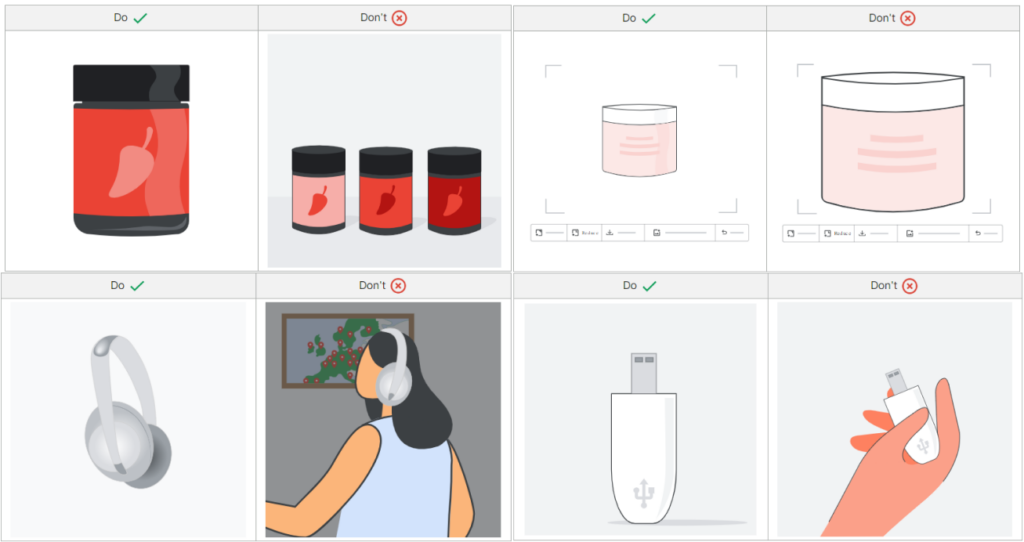
Follow these guidelines when selecting images to present your products with Product Studio. They will help you create detailed descriptions, enhancing your product data and boosting your business performance:
- For optimal results with Product Studio, use one main product image.
Place the product prominently in the center of the background, leaving most of the surrounding space white.
- Avoid images that show people using your products.
Present the product on its own. Avoid showing hands or props.
Source: Google
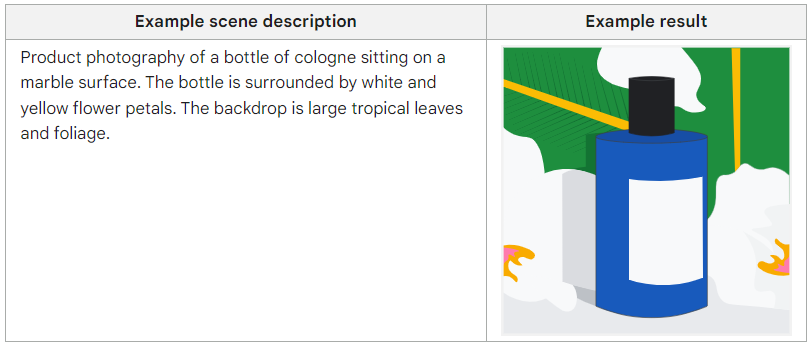
To achieve the best results when describing the scene, focus on the – image style, background, type, placement, and the surrounding scene of the product.
Source: Google
B) Adjusting the Background
You can erase the background in an image to make the product appear more distinctly to customers.
Procedure
- In Merchant Center, go to the Your Business section and open the Products page.
- At the top, select the Product Studio tab.
- In the navigation panel, click Edit Background.
- Select an existing image or upload a new one.
- Click Remove Background.
- You can zoom in, zoom out, download, or undo changes you made to the edited image.
- Finally, click Add to Merchant Center.
C) Increasing the Resolution
The Product Studio tool is ideal for enhancing smaller or lower-quality images to make them stand out in your ads and online store. You can easily improve the quality and resolution of your product images.
Procedure
- In Merchant Center, open the Your Business section and go to the Products page.
- At the top of the screen, click on the Product Studio tab.
- From the navigation menu, select Increase Resolution.
- Select the image you want to edit or upload a new one.
- Click Increase Resolution.
- Review your changes with the Before and After tool.
- Click Add to Merchant Center.
D) View History
Information such as descriptions, generated images, and generation time is automatically stored on the device you use for Product Studio. If you share this device with other people, this data may be accessible to them. However, you can delete the data at any time through the View History tab.
Conclusion
Google Product Studio is an excellent tool for creating effective and high-quality visual presentations of products in a digital environment. Thanks to its various features, such as scene generation, background editing, and resolution enhancement, you can easily customize your images and improve their appearance without the need for advanced graphic design skills.
Although it is currently available only in certain countries and requires access via Merchant Center Next or the Shopify app, it has significant potential for more effective visual campaigns. We at Shopping in EU view this development very positively and look forward to Product Studio being gradually made available here as well. We believe it will elevate your campaigns to an even higher level while saving you time and money.